
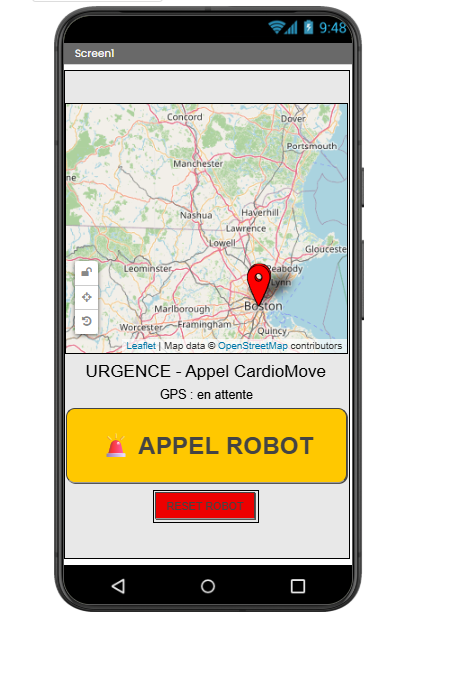
TUTO PAS À PAS – APPLI CARTE + GPS + APPEL ROBOT + RESET
1) Créer le projet
- Ouvre MIT App Inventor.
- Clique sur Create Apps.
- Clique sur Start new project.
- Nom du projet :
CardioMoveRobot
2) Dans Designer : ajouter les composants
2.1 Composants visibles
Ajoute ces composants dans Screen1 :
A. Une carte
Dans Maps :
- Map
- renomme-la :
Map1
B. Marqueur téléphone
Dans Maps :
- Marker
- renomme-le :
MarkerMe
C. Marqueur robot
Dans Maps :
- Marker
- renomme-le :
MarkerRobot
D. Titre
Dans User Interface :
- Label
- renomme-le :
LabelTitle
E. Statut
Dans User Interface :
- Label
- renomme-le :
LabelStatus
F. Bouton appel
Dans User Interface :
- Button
- renomme-le :
ButtonAppel
G. Bouton reset
Dans User Interface :
- Button
- renomme-le :
ButtonReset
2.2 Composants non visibles
Ajoute :
Sensors
- LocationSensor
- renomme :
LocationSensor1
Connectivity
- Web
- renomme :
Web1 - Web
- renomme :
WebRobot - Web
- renomme :
WebReset
Sensors
- Clock
- renomme :
Clock1 - Clock
- renomme :
ClockRobot
User Interface
- Notifier
- renomme :
Notifier1
3) Régler les propriétés dans Designer
3.1 Screen1
Sélectionne Screen1 :
AlignHorizontal=CenterScrollable=false
3.2 Map1
Sélectionne Map1 :
Width=Fill parentHeight=300 pixelsZoomLevel=15
3.3 MarkerRobot
Sélectionne MarkerRobot :
Visible=false
3.4 LabelTitle
Sélectionne LabelTitle :
Text=URGENCE - Appel CardioMoveWidth=Fill parentTextAlignment=CenterFontSize=18
3.5 LabelStatus
Sélectionne LabelStatus :
Text=GPS : en attenteWidth=Fill parentTextAlignment=Center
3.6 ButtonAppel
Sélectionne ButtonAppel :
Text=🚨 APPEL ROBOTWidth=Fill parentHeight=70 pixelsFontSize=24Enabled=false
3.7 ButtonReset
Sélectionne ButtonReset :
Text=RESET ROBOT
3.8 Clock1
Sélectionne Clock1 :
TimerEnabled=trueTimerInterval=500
3.9 ClockRobot
Sélectionne ClockRobot :
TimerEnabled=trueTimerInterval=2000
Va dans Blocks.
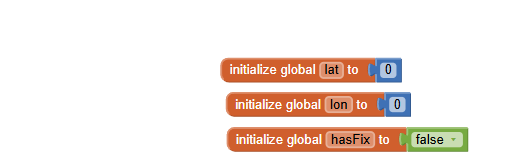
4) Créer les variables globales
Crée ces 5 variables :
initialize global lat to 0
initialize global lon to 0
initialize global hasFix to false
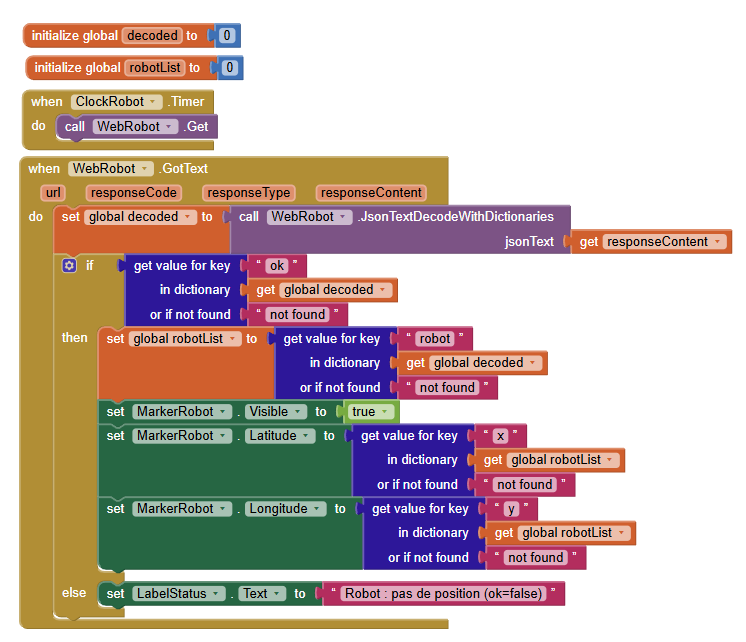
initialize global decoded to 0
initialize global robotList to 0
5) Initialisation de l’écran
Ajoute ce bloc :
when Screen1.Initialize
do
    set WebRobot.Url to "https://sti2d.latelier22.fr/fiber/api/robot-last"
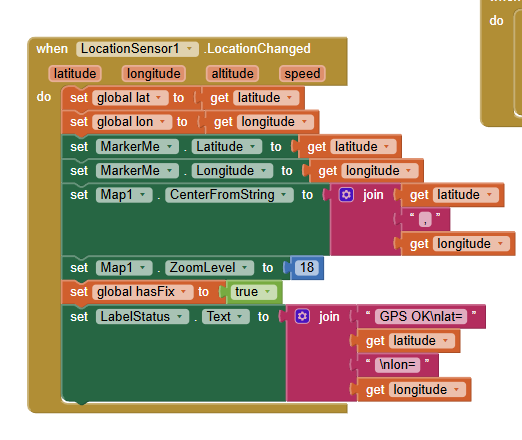
6) Bloc GPS : récupérer la position du téléphone
Ajoute ce bloc :
when LocationSensor1.LocationChanged
    latitude longitude altitude speed
do
    set global lat to get latitude
    set global lon to get longitude    set MarkerMe.Latitude to get latitude
    set MarkerMe.Longitude to get longitude    set Map1.CenterFromString to join get latitude "," get longitude
    set Map1.ZoomLevel to 18    set global hasFix to true    set LabelStatus.Text to join
        "GPS OK\nlat="
        get latitude
        "\nlon="
        get longitude
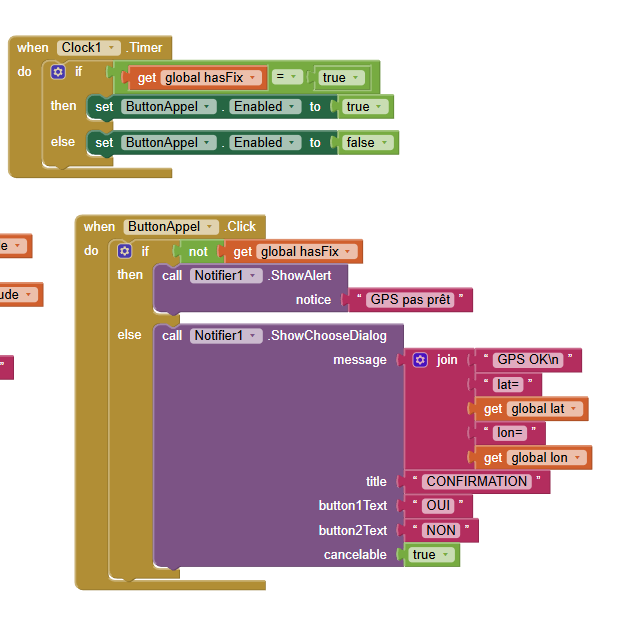
7) Activer le bouton seulement si le GPS est prêt
Ajoute ce bloc :
when Clock1.Timer
do
    if get global hasFix = true
    then
        set ButtonAppel.Enabled to true
    else
        set ButtonAppel.Enabled to false
8) Quand on clique sur APPEL ROBOT
Ajoute ce bloc :
when ButtonAppel.Click
do
    if not get global hasFix
    then
        call Notifier1.ShowAlert
            notice "GPS pas prêt"
    else
        call Notifier1.ShowChooseDialog
            message join
                "GPS OK\nlat="
                get global lat
                "\nlon="
                get global lon
            title "CONFIRMATION"
            button1Text "OUI"
            button2Text "NON"
            cancelable true
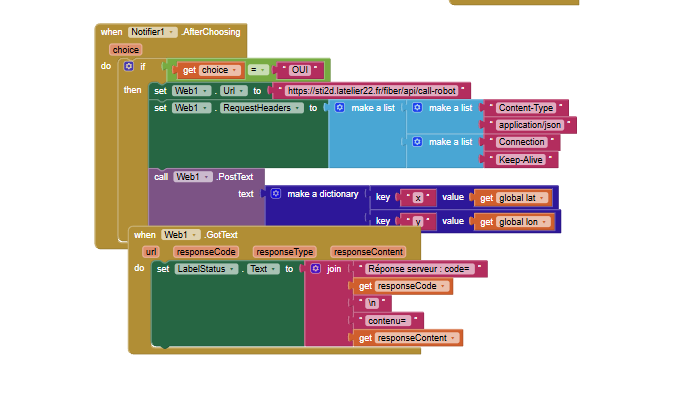
9) Après la boîte de dialogue : envoyer les coordonnées
Ajoute ce bloc :
when Notifier1.AfterChoosing
    choice
do
    if get choice = "OUI"
    then
        set Web1.Url to "https://sti2d.latelier22.fr/fiber/api/call-robot"        set Web1.RequestHeaders to make a list
            make a list "Content-Type" "application/json"
            make a list "Connection" "Keep-Alive"        call Web1.PostText
            text call Web1.JsonTextEncode
                valueToEncode make a dictionary
                    key "x" value get global lat
                    key "y" value get global lon
10) Lire la réponse après l’appel robot
Ajoute ce bloc :
when Web1.GotText
    url responseCode responseType responseContent
do
    set LabelStatus.Text to join
        "Réponse serveur : code="
        get responseCode
        "\ncontenu="
        get responseContent
11) Lire automatiquement la position du robot
Ajoute ce bloc :
when ClockRobot.Timer
do
    call WebRobot.Get
12) Décoder le JSON du robot et placer le marqueur
Ajoute ce bloc :
when WebRobot.GotText
    url responseCode responseType responseContent
do
    set global decoded to call WebRobot.JsonTextDecodeWithDictionaries
        jsonText get responseContent    if get value for key "ok"
        in dictionary get global decoded
        or if not found false
    then
        set global robotList to get value for key "robot"
            in dictionary get global decoded
            or if not found create empty dictionary        set MarkerRobot.Visible to true        set MarkerRobot.Latitude to get value for key "x"
            in dictionary get global robotList
            or if not found 0        set MarkerRobot.Longitude to get value for key "y"
            in dictionary get global robotList
            or if not found 0
    else
        set LabelStatus.Text to "Robot : pas de position"
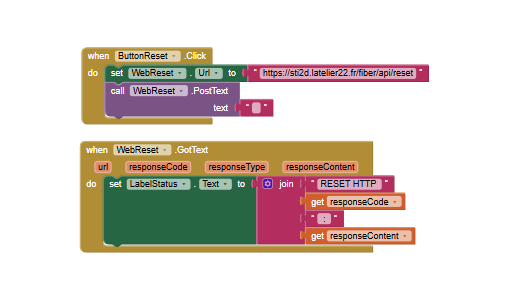
13) Bouton RESET ROBOT
Ajoute ce bloc :
when ButtonReset.Click
do
    set WebReset.Url to "https://sti2d.latelier22.fr/fiber/api/reset"
    call WebReset.PostText
        text ""
14) Réponse après RESET
Ajoute ce bloc :
when WebReset.GotText
    url responseCode responseType responseContent
do
    set LabelStatus.Text to join
        "RESET HTTP "
        get responseCode
        " : "
        get responseContent
15) Résultat attendu
Quand tu lances l’appli :
- la carte s’affiche
- le téléphone récupère son GPS
MarkerMese place sur la carte- le bouton APPEL ROBOT s’active
- si tu cliques dessus, une confirmation s’ouvre
- si tu choisis OUI, l’appli envoie :
{"x": latitude, "y": longitude}
- toutes les 2 secondes, l’appli lit
/robot-last MarkerRobotse met à la position du robot- le bouton RESET ROBOT envoie un POST vers
/reset
16) Les 3 URL à recopier exactement
Appel robot
https://sti2d.latelier22.fr/fiber/api/call-robot
Position robot
https://sti2d.latelier22.fr/fiber/api/robot-last
Reset robot
https://sti2d.latelier22.fr/fiber/api/reset
17) Si ça ne marche pas
Le bouton APPEL ROBOT reste grisé
Vérifie que ce bloc existe bien :
when LocationSensor1.LocationChanged
    ...
    set global hasFix to true
Le robot n’apparaît pas
Vérifie :
WebRobot.UrlClockRobot.TimerEnabled = trueMarkerRobot.Visiblepasse àtrue- les clés
"x"et"y"sont bien lues
Erreur d’envoi JSON
Dans Web1.PostText, il faut bien utiliser :
call Web1.JsonTextEncode
et pas envoyer le dictionnaire brut.
18) Ordre exact des blocs à faire
Fais-les dans cet ordre :
- variables globales
Screen1.InitializeLocationSensor1.LocationChangedClock1.TimerButtonAppel.ClickNotifier1.AfterChoosingWeb1.GotTextClockRobot.TimerWebRobot.GotTextButtonReset.ClickWebReset.GotText
19) Noms exacts des composants
Recopie bien ces noms :
Map1
MarkerMe
MarkerRobot
LabelTitle
LabelStatus
ButtonAppel
ButtonReset
LocationSensor1
Web1
WebRobot
WebReset
Clock1
ClockRobot
Notifier1
20) Le plus important
Les blocs sont en anglais, donc tu dois retrouver exactement :
when LocationSensor1.LocationChanged
when Clock1.Timer
when ButtonAppel.Click
when Notifier1.AfterChoosing
when Web1.GotText
when ClockRobot.Timer
when WebRobot.GotText
when ButtonReset.Click
when WebReset.GotText