
- ajouter le marqueur du robot
- voir toujours les 2 marqueurs
- sans blabla
On part des de ton appli actuelle avec :
Map1Marker1= téléphoneLabelPosBtnSendTxtJsonLocationSensor1
1) Dans Designer, ajouter 2 composants
A. Ajouter le marqueur du robot
Dans Maps :
- ajoute un Marker
- renomme-le :
MarkerRobot
B. Ajouter le composant Web
Dans Connectivity :
- ajoute un Web
- renomme-le :
WebRobot
C. Ajouter une horloge
Dans Sensors :
- ajoute un Clock
- renomme-le :
ClockRobot
2) Régler les propriétés
MarkerRobot
Visible=false
ClockRobot
TimerEnabled=trueTimerInterval=2000
Cela veut dire :
- toutes les 2 secondes
- l’application demandera la position du robot
3) Créer les variables globales
Va dans Blocks et ajoute ces variables :
initialize global myLat to 0
initialize global myLon to 0
initialize global robotLat to 0
initialize global robotLon to 0
initialize global hasRobot to false
initialize global decodedRobot to 0
initialize global robotData to 0
4) Modifier le bloc Screen1.Initialize
Tu as déjà un bloc when Screen1.Initialize.
Ajoute dedans :
set WebRobot.Url to "https://sti2d.latelier22.fr/fiber/api/robot-last"
set MarkerRobot.Visible to false
Ton bloc ressemble maintenant à ça :
when Screen1.Initialize
do
    set Map1.ZoomLevel to 16
    set Map1.CenterFromString to "48.1762740,-2.7520210"
    set LabelPos.Text to "Position : en attente du GPS"
    set WebRobot.Url to "https://sti2d.latelier22.fr/fiber/api/robot-last"
    set MarkerRobot.Visible to false
5) Créer une procédure pour centrer la carte entre les 2 marqueurs
Dans Procedures :
- crée une procédure
- nom :
UpdateMapCenter
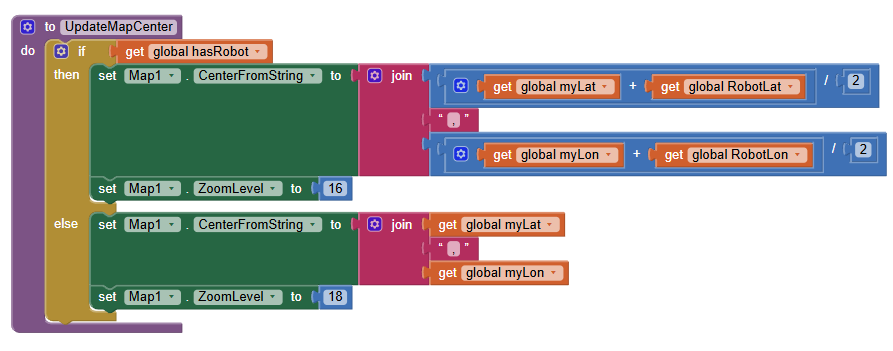
6) Dans UpdateMapCenter, mettre les blocs suivants
Dans cette procédure, mets :
if get global hasRobot
then
    set Map1.CenterFromString to join
        ((get global myLat + get global robotLat) / 2)
        ","
        ((get global myLon + get global robotLon) / 2)

    set Map1.ZoomLevel to 16
else
    set Map1.CenterFromString to join
        get global myLat
        ","
        get global myLon

    set Map1.ZoomLevel to 18
7) À quoi sert cette procédure
Elle fait ceci :
- si le robot est connu → la carte se centre au milieu des 2
- sinon → la carte reste centrée sur le téléphone
Important :
quand les 2 existent, on met ZoomLevel = 16
pour avoir les 2 marqueurs visibles
8) Modifier le bloc LocationSensor1.PositionChanged
Dans ton bloc actuel :
when LocationSensor1.PositionChanged
ajoute d’abord ces 2 lignes :
set global myLat to get Latitude
set global myLon to get Longitude
Ensuite garde :
set Marker1.Latitude to get Latitude
set Marker1.Longitude to get Longitude
Puis supprime les lignes qui mettaientt directement :
set Map1.CenterFromString to ...
et
set Map1.ZoomLevel to 18
et remplace-la par :
call UpdateMapCenter
Puis garde :
set LabelPos.Text to join get Latitude "," get Longitude
9) Ton bloc LocationSensor1.PositionChanged doit devenir
when LocationSensor1.PositionChanged
    Latitude Longitude Altitude speed
do
    set global myLat to get Latitude
    set global myLon to get Longitude

    set Marker1.Latitude to get Latitude
    set Marker1.Longitude to get Longitude

    call UpdateMapCenter

    set LabelPos.Text to join
        "Moi : "
        get Latitude
        ", "
        get Longitude
10) Créer le bloc pour demander la position du robot
Ajoute ce bloc :
when ClockRobot.Timer
do
    call WebRobot.Get
11) Créer le bloc WebRobot.GotText
Ajoute ce bloc :
when WebRobot.GotText
    url responseCode responseType responseContent
do
12) Dans WebRobot.GotText, décoder le JSON
Dans ce bloc, mets d’abord :
set global decodedRobot to call WebRobot.JsonTextDecodeWithDictionaries
    responseContent
13) Vérifier que la réponse est bonne
Juste après, ajoute :
if get value for key "ok"
   in dictionary get global decodedRobot
   or if not found false
then
14) Récupérer l’objet robot
Dans le then, ajoute :
set global robotData to get value for key "robot"
    in dictionary get global decodedRobot
    or if not found 0
15) Lire la latitude et la longitude du robot
Toujours dans le then, ajoute :
set global robotLat to get value for key "x"
    in dictionary get global robotData
    or if not found 0

set global robotLon to get value for key "y"
    in dictionary get global robotData
    or if not found 0
16) Déplacer le marqueur robot
Toujours dans le then, ajoute :
set MarkerRobot.Latitude to get global robotLat
set MarkerRobot.Longitude to get global robotLon
set MarkerRobot.Visible to true
set global hasRobot to true
17) Recentrer la carte pour voir les 2 marqueurs
Toujours dans le then, ajoute :
call UpdateMapCenter
18) Bloc complet WebRobot.GotText
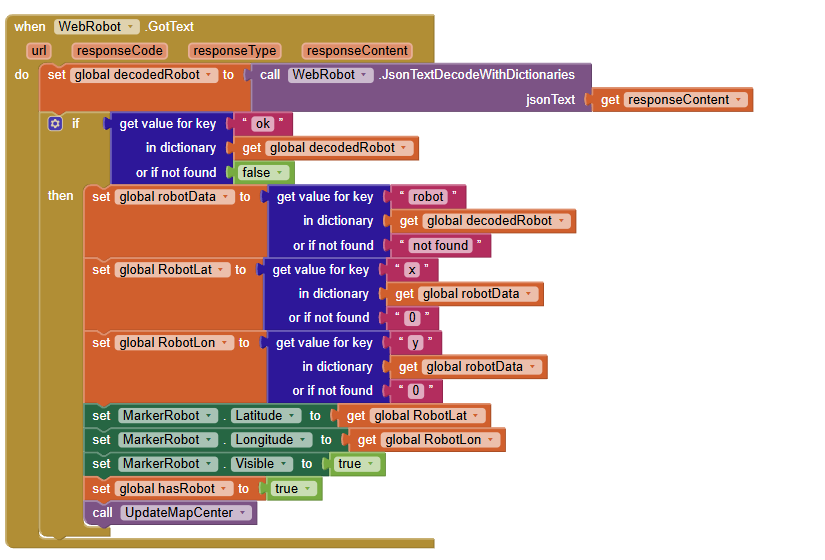
Au final, ton bloc doit ressembler à ceci :
when WebRobot.GotText
    url responseCode responseType responseContent
do
    set global decodedRobot to call WebRobot.JsonTextDecodeWithDictionaries
        responseContent

    if get value for key "ok"
       in dictionary get global decodedRobot
       or if not found false
    then
        set global robotData to get value for key "robot"
            in dictionary get global decodedRobot
            or if not found 0

        set global robotLat to get value for key "x"
            in dictionary get global robotData
            or if not found 0

        set global robotLon to get value for key "y"
            in dictionary get global robotData
            or if not found 0

        set MarkerRobot.Latitude to get global robotLat
        set MarkerRobot.Longitude to get global robotLon
        set MarkerRobot.Visible to true
        set global hasRobot to true

        call UpdateMapCenter
19) Ce qu’il faut changer dans ton appli
Avant
Tu recentrais la carte seulement sur le téléphone
Maintenant
Tu centres la carte :
- sur le téléphone si le robot n’est pas encore connu
- au milieu entre téléphone et robot si le robot est connu
C’est ça qui permet de voir les 2 marqueurs
20) Très important
Ne fais plus ça
Dans LocationSensor1.PositionChanged, ne mets plus :
set Map1.ZoomLevel to 18
set Map1.CenterFromString to ...
sinon la carte reviendra toujours sur toi, et on ne verra pas le robot.
Fais ça à la place
Dans LocationSensor1.PositionChanged, mets juste :
call UpdateMapCenter
21) Résultat attendu
Quand l’appli tourne :
Marker1affiche ta positionClockRobotappelle l’API toutes les 2 secondesMarkerRobotapparaît quand la position robot arrive- la carte se centre entre les 2
- les 2 marqueurs restent visibles
22) Adresse à mettre
Dans Screen1.Initialize, l’adresse est :
https://sti2d.latelier22.fr/fiber/api/robot-last
23) Résumé ultra court
Ajouter :
MarkerRobotWebRobotClockRobot
Créer les variables :
myLatmyLonrobotLatrobotLonhasRobotdecodedRobotrobotData
Créer la procédure :
UpdateMapCenter
Ajouter les blocs :
when ClockRobot.Timerwhen WebRobot.GotText
Modifier :
when Screen1.Initializewhen LocationSensor1.PositionChanged
24) Si tu veux que ça marche du premier coup
Fais les étapes dans cet ordre exact :
- ajouter
MarkerRobot - ajouter
WebRobot - ajouter
ClockRobot - régler
ClockRobot - créer les variables globales
- compléter
Screen1.Initialize - créer la procédure
UpdateMapCenter - modifier
LocationSensor1.PositionChanged - créer
ClockRobot.Timer - créer
WebRobot.GotText