
Auteur/autrice : admin0
-
COURS INTERNET
LIEN VERS LE QUESTIONNAIRE
https://docs.google.com/document/d/1N7T_WEWu9Mfu0D2bIOgmyiZVv71JcpyOslKRADXT2w4/edit?usp=sharing
CORREFCTION
Activité N°1
Activité N°2
-
Activité documentaire Internet
Télécharger le document word, et compléter le à l’aide du cours papier
-
Accès WordPress — 2NDE3P1
Adresse de connexion : https://fulgence-bienvenue.fr/wp-admin/
Élève Identifiant Mot de passe ABDELHAFIDH Iyad a_iyadiyadABER Louis a_louislouisARNOULD Loukas a_loukasloukasBAHUAUD Flavie b_flavieflavieBENMEKHBI Milina b_milinamilinaBIRON Oscar b_oscaroscarBOGA Yann b_yannyannBOSCHER Corentin b_corentincorentinBOUÉ Adèle b_adeleadeleBOURNIER Léna b_lenalenaCOLLET Julie c_juliejulieFOESSEL-CHIEFARE Alek f_alekalekGANNE Elfie g_elfieelfieGICQUEL Nohan g_nohannohanGONCALVES Matt g_mattmattLECHLEIDER Arthur l_arthurarthurLORINQUER Yolan l_yolanyolanConsigne : ne pas communiquer son accès et se déconnecter après chaque utilisation.
-
CardioMove: simulation sons et lumière
Etape 1 : changement son en fonction de la vitesse
Appuie sur BP1 pour accélérer
BP2 pour ralentire et reculer
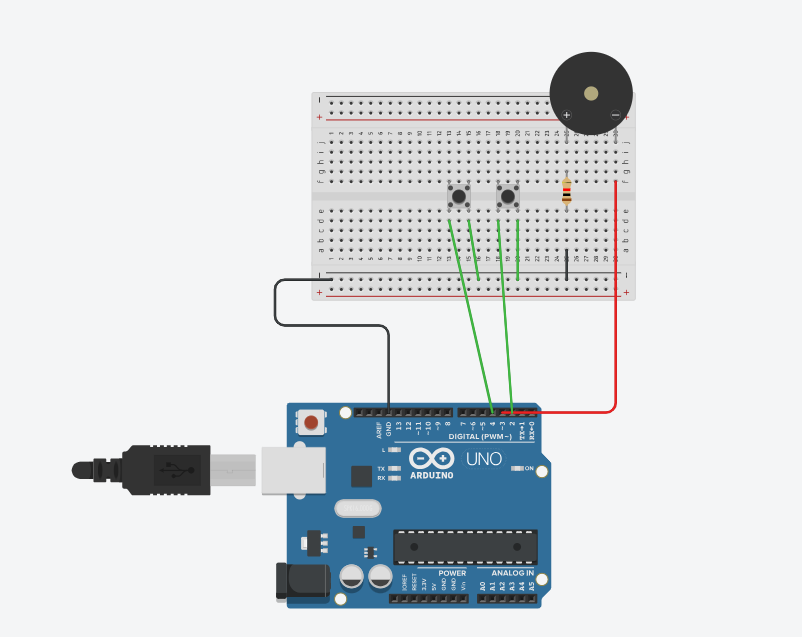
Code Arduino
int buzzer = 3;
int BP1 = 2; // augmente le niveau
int BP2 = 4; // diminue le niveauint niveau = 0; // de 0 à 9
int frequences[10] = {
150, 220, 300, 400, 500,
650, 800, 1000, 1300, 1600
};void setup() {
pinMode(buzzer, OUTPUT);pinMode(BP1, INPUT_PULLUP);
pinMode(BP2, INPUT_PULLUP);
}void loop() {
if (digitalRead(BP1) == LOW) {
niveau++;if (niveau > 9) { niveau = 9; } delay(250);}
if (digitalRead(BP2) == LOW) {
niveau–;if (niveau < 0) { niveau = 0; } delay(250);}
if (niveau == 0) {
noTone(buzzer);
} else {
tone(buzzer, frequences[niveau]);
}
} -
THEME 4 : Le son
-
Mots de passe PAC
sim_id label role password api_token default ADMIN admin 5njbmEKqLqe4 b8394264cb074bbc7b4a4902677581e07c61edc848c4c7ed eleve01 ELEVE01 student mWphvci7P3 07d2c641ab02bf918098a28197614d29e6b771c70a2572c7 eleve02 ELEVE02 student CAcJnUnf4S e6be08d289a6f99290109a6942c56b1ac5f1edf94b957fd7 eleve03 ELEVE03 student Jur9QJdsFD cc5fd0fe1c9f8f86fa6b7fc05f9127d4d77ce03869d78dab eleve04 ELEVE04 student 6DcZGtr2Xu 022fd9bfe706ada0a52f8ce151f242c25acdd3a2f9f42e6a eleve05 ELEVE05 student sdYcZoSewC d3777b7ae09a2022078ca7c832360dfe71d4aab29e40b675 eleve06 ELEVE06 student LhXPz2PC5x 62d13086e91430f88006cb7b45f3cc47e42c079639eba926 eleve07 ELEVE07 student CMsQ6f9bTH e54f3be163919a4b92496356fb170884f34aa8f35f6d404f eleve08 ELEVE08 student wNYEMQAVNZ 9c18d0e1c6b3bc3a11d8c249b677786344dc2c95443b57e5 eleve09 ELEVE09 student mi2CJ9tqxt 2bd8edfa2b938fa871afa20eb0b6203d9720c64eac442dd3 eleve10 ELEVE10 student ZZKcQeTPbr 0075073aa5c93c2a4c3cb73fedd6fd9f5f05fd618bc43a23 -
Controle de la PAC Requettes http avec curl en ligne de commande
Accès web
Voir sa PAC dans le navigateur
Ouvrir :
https://proxy-automate.latelier22.fr/pac.php?sim=eleveXXExemple :
https://proxy-automate.latelier22.fr/pac.php?sim=eleve03Se connecter pour piloter sa PAC
Lien vers les mots de passe et les tokens (jetons pour connexion API)
https://www.fulgence-bienvenue.fr/2026/05/11/mots-de-passe-pac/Ouvrir :
https://proxy-automate.latelier22.fr/login.php?sim=eleveXX&redirect=/pac.php?sim=eleveXXExemple :
https://proxy-automate.latelier22.fr/login.php?sim=eleve03&redirect=/pac.php?sim=eleve03Après connexion, l’élève revient sur sa PAC.
Lire l’état brut en JSON
Ouvrir :
https://proxy-automate.latelier22.fr/api.php?sim=eleveXX
Commandes
curlWindowsRemplacer :
eleveXXpar votre identifiantTOKEN_ELEVE_XXpar votre token
Lire l’état
curl "https://proxy-automate.latelier22.fr/api.php?sim=eleveXX"START
curl -X POST "https://proxy-automate.latelier22.fr/control.php" -H "Content-Type: application/x-www-form-urlencoded" -H "X-Api-Token: TOKEN_ELEVE_XX" -d "action=start&sim=eleveXX"STOP
curl -X POST "https://proxy-automate.latelier22.fr/control.php" -H "Content-Type: application/x-www-form-urlencoded" -H "X-Api-Token: TOKEN_ELEVE_XX" -d "action=stop&sim=eleveXX"Consigne +
curl -X POST "https://proxy-automate.latelier22.fr/control.php" -H "Content-Type: application/x-www-form-urlencoded" -H "X-Api-Token: TOKEN_ELEVE_XX" -d "action=sp_plus&sim=eleveXX"Consigne –
curl -X POST "https://proxy-automate.latelier22.fr/control.php" -H "Content-Type: application/x-www-form-urlencoded" -H "X-Api-Token: TOKEN_ELEVE_XX" -d "action=sp_minus&sim=eleveXX"Mettre une consigne directe à 22.5
curl -X POST "https://proxy-automate.latelier22.fr/control.php" -H "Content-Type: application/x-www-form-urlencoded" -H "X-Api-Token: TOKEN_ELEVE_XX" -d "action=set_setpoint&setpoint=22.5&sim=eleveXX"Mettre la température ambiante à 18
curl -X POST "https://proxy-automate.latelier22.fr/control.php" -H "Content-Type: application/x-www-form-urlencoded" -H "X-Api-Token: TOKEN_ELEVE_XX" -d "action=set_ambient&ambient_temp=18&sim=eleveXX"RESET
curl -X POST "https://proxy-automate.latelier22.fr/control.php" -H "Content-Type: application/x-www-form-urlencoded" -H "X-Api-Token: TOKEN_ELEVE_XX" -d "action=reset&sim=eleveXX"Exemple réel pour
eleve10Lire
curl "https://proxy-automate.latelier22.fr/api.php?sim=eleve10"START
curl -X POST "https://proxy-automate.latelier22.fr/control.php" -H "Content-Type: application/x-www-form-urlencoded" -H "X-Api-Token: 0075073aa5c93c2a4c3cb73fedd6fd9f5f05fd618bc43a23" -d "action=start&sim=eleve10"STOP
curl -X POST "https://proxy-automate.latelier22.fr/control.php" -H "Content-Type: application/x-www-form-urlencoded" -H "X-Api-Token: 0075073aa5c93c2a4c3cb73fedd6fd9f5f05fd618bc43a23" -d "action=stop&sim=eleve10"RESET
curl -X POST "https://proxy-automate.latelier22.fr/control.php" -H "Content-Type: application/x-www-form-urlencoded" -H "X-Api-Token: 0075073aa5c93c2a4c3cb73fedd6fd9f5f05fd618bc43a23" -d "action=reset&sim=eleve10"A faire
Modifier votre application mobile
Ajouter 2 boutons PLUS et MOINS pour augmenter / diminuer la consigne de température de la PAC
il faudra ajouter votre token, sinon vous ne serez pas autorisé à commander la PAC à distance…. -
Tuto app inventor / arduino
App Inventor — LED Bluetooth — anglais
1. Elements à mettre et à nommer
Dans User Interface
Élément à glisser Renommer en Text ListPicker ListPicker_BTConnect BluetoothButton Button_ONONButton Button_OFFOFFLabel Label_StatusNot connected
Dans Connectivity
Élément à glisser Renommer en BluetoothClient BluetoothClient1
2. Blocks
Cliquer sur Blocks.
3. Bloc connexion : liste Bluetooth
Cliquer sur
ListPicker_BT.Prendre :
when ListPicker_BT.BeforePickingAjouter :
set ListPicker_BT.Elements to BluetoothClient1.AddressesAndNamesBloc complet :
when ListPicker_BT.BeforePicking
do set ListPicker_BT.Elements to BluetoothClient1.AddressesAndNames
4. Bloc connexion : choisir HC-05
Cliquer sur
ListPicker_BT.Prendre :
when ListPicker_BT.AfterPickingAjouter :
call BluetoothClient1.Connect address ListPicker_BT.SelectionAjouter :
set Label_Status.Text to "Connected"Bloc complet :
when ListPicker_BT.AfterPicking
do call BluetoothClient1.Connect address ListPicker_BT.Selection
   set Label_Status.Text to "Connected"
5. Bloc bouton ON
Cliquer sur
Button_ON.Prendre :
when Button_ON.ClickAjouter :
if BluetoothClient1.IsConnected
then call BluetoothClient1.SendText text "1"
Bloc complet :
when Button_ON.Click
do if BluetoothClient1.IsConnected
   then call BluetoothClient1.SendText text "1"
6. Bloc bouton OFF
Cliquer sur
Button_OFF.Prendre :
when Button_OFF.ClickAjouter :
if BluetoothClient1.IsConnected
then call BluetoothClient1.SendText text "0"
Bloc complet :
when Button_OFF.Click
do if BluetoothClient1.IsConnected
   then call BluetoothClient1.SendText text "0"
7. Résultat
ON  → envoie 1 → LED allumée
OFF → envoie 0 → LED éteinte